· Education · 2 min read
The 'Hand-Me-Down' Laptop: How to Safely Prep an Old PC for Your Hutto Student
Giving your old laptop to your child for school? Follow this 4-step guide to wipe your data and "speed up" the machine for Hutto ISD success.

The “Hand-Me-Down” Laptop: How to Safely Prep an Old PC for Your Hutto Student
With Hutto ISD and Taylor ISD growing so fast, many parents are opting to give their “old” work laptops to their students for homework, research, and coding projects.
While a 4-year-old MacBook or PC is often powerful enough for schoolwork, you don’t want your student inheriting your old browser history, saved passwords, or a cluttered, slow system. Here is the Pro-Xi Guide to prepping that hand-me-down laptop.
1. The “Deep Clean” (Physical)
Before you even turn it on, remember that laptops are magnets for dust and germs.
- The Screen: Use a dry microfiber cloth. Never use Windex—it can strip the protective coating off the display.
- The Keyboard: Use compressed air to blow out the crumbs. If keys are sticking, it might need a professional internal cleaning to prevent a short circuit.
2. Wipe Your Digital Footprint
You don’t want your child accidentally logged into your bank account or work email.
- Windows Users: Go to Settings > Update & Security > Recovery > Reset this PC. Choose “Remove everything” for a fresh start.
- Mac Users: Use the “Erase Assistant” (available on newer macOS versions) to securely wipe your data while keeping the operating system intact.
3. Safety First: Parental Controls
Once the laptop is wiped, set up a dedicated “Standard User” account for your student.
- Microsoft Family / Apple Screen Time: These tools allow you to set “bedtime” hours for the laptop and block inappropriate websites.
- The Golden Rule: Always keep the laptop in a common area (like the kitchen table) rather than a bedroom to encourage healthy digital habits.
4. The Hardware Checkup
An old laptop might feel slow because the battery is failing or the thermal paste (the stuff that keeps the brain cool) has dried out.
- Battery Check: If the laptop dies within 30 minutes of being unplugged, it’s time for a replacement.
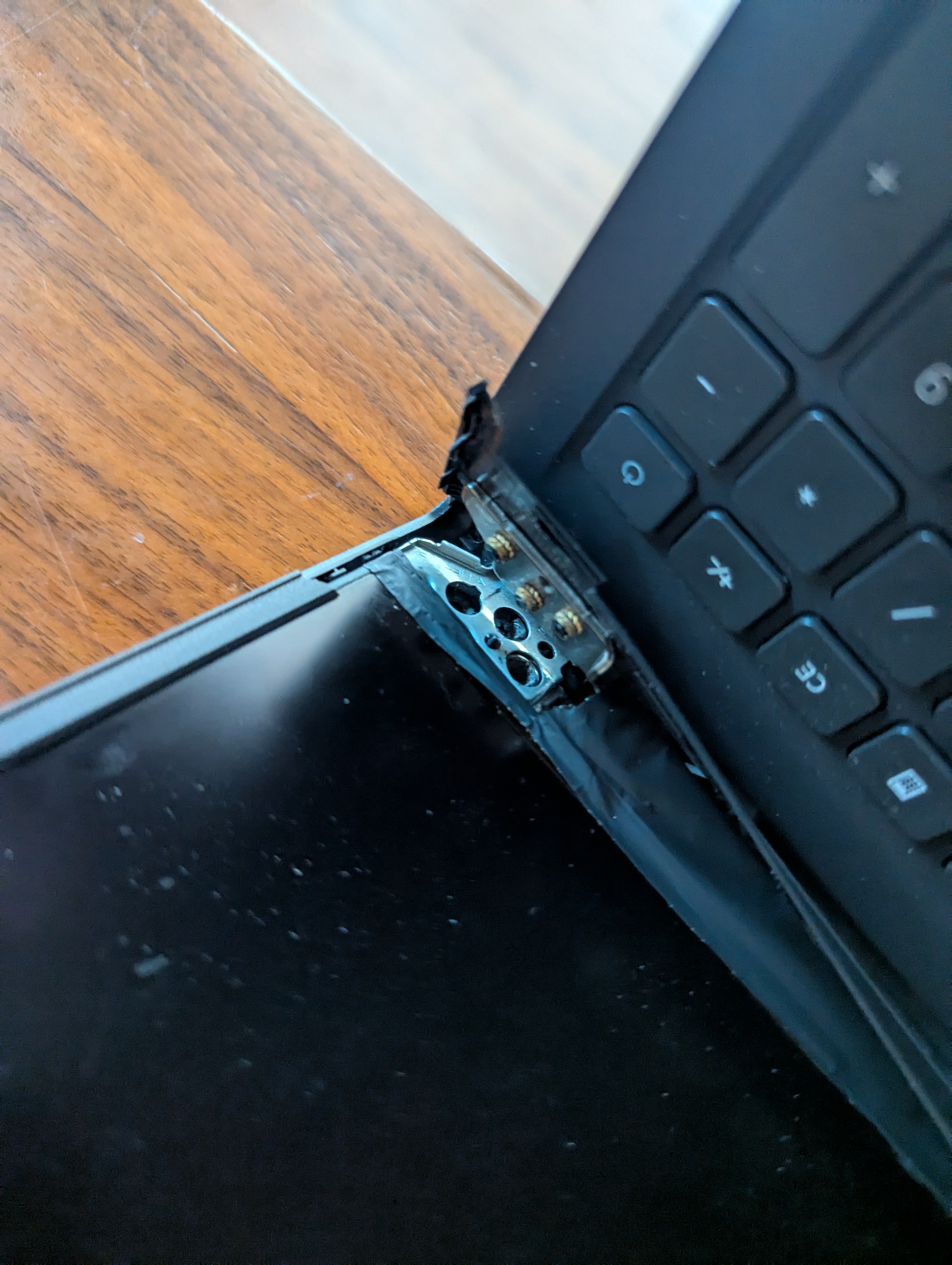
- Hinge Check: Open and close the lid slowly. If you hear a “pop” or see the plastic separating, stop immediately. This is a common issue we fix at Pro-Xi before it snaps the expensive screen.
Need a Pro-Prep?
If the “Reset” didn’t make the laptop faster, or if you’re worried about that “clicking” sound in the hinge, bring it to us. We can perform a “Student Success Tune-up” which includes:
- Full internal dust removal.
- OS optimization for faster boot times.
- Physical integrity check (hinges and ports).
Visit our 24/7 Secure Drop-Box at 226 Almquist St, Hutto.
Questions? Text us at 512-766-3825